Attention Class of 2024 (including '23 spring/fall): Your account will close on August 1st, 2024! This includes your @reed.edu email, Google Drive, as well as Employee Self-Service. Your email and Google Drive files will be permanently deleted and access removed for collaborators. Plan on it taking weeks to fully backup all of your data. Follow our checklist well before August to properly save your data!
Migrating from Your Reed User Account
Moving on From Reed — Electronically
Graduate accounts are closed in early August. At that time:
- Email sent to your @reed.edu address will bounce back to the sender
- Google docs and drive files will be deleted (even for collaborators)
Read on to learn how to save your data before your account is closed. It can take many days to weeks to backup all your data...use our checklist to plan accordingly!
Checklist for seniors
Mid-May
- Configure a vacation message or alert your contacts that your @reed email address will be going away and to use a personal email going forward.
- Applying for jobs, grad school, etc.? Do not use your @reed address since it will go away!
- Did you use your @reed address to sign up for online services (e.g. banking, streaming services, etc.)? Change them to a personal address now so you won't get locked out in the future.
- Setup email forwarding so your @reed.edu address forwards to a personal account. (Note: this forwarding will only work while your Reed email remains active)
Early June
Mid June
Early July
Closure Date (early August)
Once your account is closed:
- Emails sent to your @reed.edu address will bounce back to the sender
- Google Drive files will be deleted and no longer accessible by you or collaborators
Temporary Email Forwarding (before your account closes)
Before your email account is closed, you can temporarily set up email forwarding to an alternative account. Please keep in mind that once your Reed email account is closed, this forwarding will no longer work!
- If you've set up a vacation message to notify your contacts that your Reed email will go away, please follow Gmail's forwarding instructions to preserve the vacation message.
- Otherwise, if you do not have a vacation message configured, log in to IRIS: https://iris.reed.edu/email_prefs/update/delivery.
- Enter the desired address in the white box below where it says Deliver my email to another account.
- Click the Update delivery preference button.
Notify Your Contacts Automatically with a Vacation Message
Inform anyone who emails you that your @reed.edu address will be closing and that they should direct future communications elsewhere (e.g., personal email address).
Gmail provides the ability to set up a vacation message that can be used to inform your contacts of your account closure and how they may email you in the future. See our Gmail page for detailed instructions. If you've set up email forwarding through IRIS, the vacation message will not work. To enable forwarding and have a working vacation message, configure forwarding through Gmail instead.
Move collaborative Google Drive files to a shared drive or assign new owner
Be Aware: Your Google Drive files will be permanently deleted even for collaborators! Any files you've shared with faculty or other collaborators that need to persist should be moved to a Shared Drive or ownership assigned to a continuing Reed member.
Shared Drives
Shared drives provide persistent storage even as team members change and accounts are closed (files in shared drives have no owner). Contact CUS if you need a shared drive created for this purpose.
Transferring Google Doc Ownership
Follow Google's instructions to transfer ownership of a Google Doc to another Reed user. Note that this method only allows you to transfer ownership to another Reed member.
Backup Your Google Account
There are several methods for backing up your Google Account data
- Google Transfer - copy and transfer your email and Google Drive files to another Google Account. Note: can take days to a week for your data to be fully transferred
- Google Takeout - download most Google data for archive (email, documents, calendar, photos, etc.). Note: can take days to a week for your data to be ready for download
- Manually - download individual google docs one at a time
Google Transfer
Google Transfer allows you to copy your email and google drive files to a personal Google account. If you used your Reed account for other Google applications, such as calendars, maps, and others, and want to download that data as an archive you can use Google Takeout.
To use Google Transfer:
- Visit the Google Transfer website.
- On the Google Transfer page, verify you are logged into your Reed account by clicking the icon in the upper right corner of the page. If you see a personal Gmail account listed, you'll want to sign out and log back in with your Reed account.
- Enter your personal email address under 'Destination Account' and click SEND CODE. This will send a confirmation email to your personal account which will take you to a page with a confirmation code.
- Copy and paste that code into the 'Verify Destination Account' field.
- You should now see option to transfer either your Google Drive files, your email contents, or both to your personal account. Click 'Start Transfer' to begin the process.
What Will be Transferred:
- Files in Folders in Google Drive that are OWNED by you.
- Shared files that have been "Added to Drive" will be copied but the new file will NOT be shared with collaborators.
What will NOT Transfer:
- Images stored under "Google Photos".
- “Shared with Me” Files that have NOT been "Added To Drive."
- Google Sites, Google Forms, MyMaps, or other third-party content in Drive.
Google Takeout
Google Takeout can be used to make an archive backup of Gmail, Google Drive, and most other Google Content. Depending on the amount of data in your account, it may take up to a week for your archive to be created and sent to you.
- Sign into Google Takeout using your Reed account.
- On the first screen, you can select the applications you wish to back up. By default, everything is selected. You can select the specific apps you wish to backup as well as change the backup format and specify what content from each application you wish to archive.
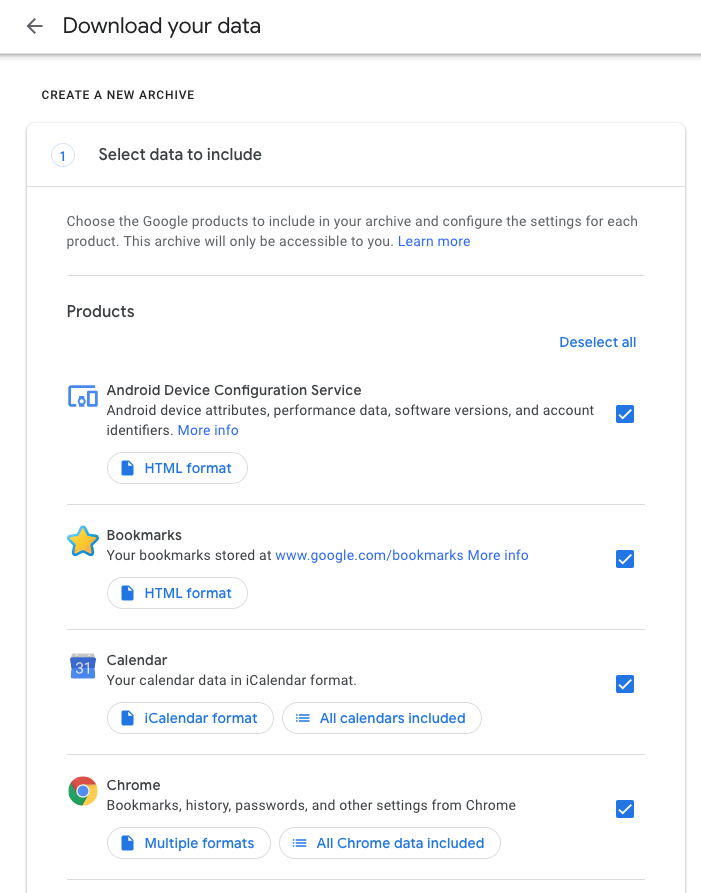
- Click 'Next Step' and choose your preferred delivery method, frequency of backup, file type, and file size. The archive will then be created when you select 'Create Export'.
Manually download Google Docs
To export an individual document from Google Drive:
- Open your Google Doc or Spreadsheet, click the File menu; scroll down and highlight Download As.
- You'll see options to save common formats such as Word or Excel, PDF, or even OpenOffice. Once you've made your desired format, your browser will prompt you to save the file to your computer.
To save all your documents at once:
- Go to your Google Drive
- Select the first file you wish to save
- Hold down Command (for Apple machines) or Control (for Windows machines) and keep holding it down while you click on each file you wish to save.
- Choose Download from the drop-down menu at the top right corner, labeled with three dots.
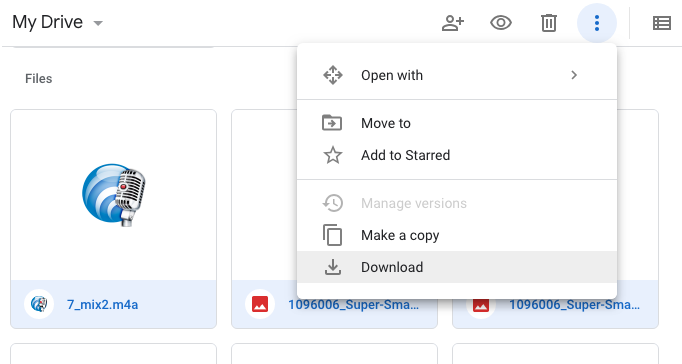
- These files will then be downloaded as a zip file onto your computer.
Common Issues with Transfer and Takeout
When some files or emails fail to transfer, you will receive an email with an error: Null (null). This usually means that the transfer process has finished, but some files may not have been copied. Unfortunately, it's not easy to identify the problematic file or email. Larger items and unusual file types are typically the cause of failures.
To see which files were properly transfered, go to this link: https://takeout.google.com/transfer. There should now be a "View History" link near the top of the page. Once you click that, you should see a list of files that were not transferred.
Some reasons why your files were not transferred include:
- You are out of Google Drive space on your personal account. To check your storage, go to this link: https://drive.google.com/settings/storage
- You are trying to transfer a document that can't be shared outside its domain. To work around this, you have to create an empty document in your personal account and copy the contents of the untransferred file into your personal one
Some files may have no explanation other than that they're just frustrating to work with. You can try to transfer those specific files again, but if that still doesn't work, you can download the files and move them into your Google Drive manually.
Additional Tips:
- Google Drive’s quota page shows the largest files in Google Drive
- Google’s Gmail search is the best way to find large email
- You may also want to look for uncommon file types and attachments. Documents, PDFs, and pictures all tend to transfer without issue.
- Once the problematic file/email has been identified, it will need to be manually downloaded.
Back up your Reed Email With an Email Client
If you do not back up your Reed email using Google Transfer or Takeout you can store it locally using an email client such as Apple Mail or Thunderbird.
Apple Mail
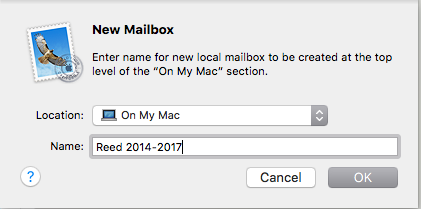
To back up your email messages in Apple Mail, go to the Mailbox menu and choose New Mailbox. For each folder, select all messages ( Edit > Select All) within the folder, right (control)-click them, and move them to the folder you just made. Make sure the new folder is in the "On My Mac" portion of folders.
Note: Because these messages are now on your personal machine, Reed will no longer back them up for you. We recommend that you back them up on your own.
To back up your mail, go to the Finder, use the Go menu > Go to folder, and type ~/Library/. Copy (drag) the Mail folder to an external hard drive.
Thunderbird
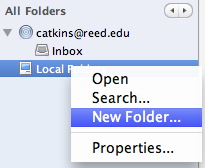
An e-mail client such as Thunderbird can be used to save all your e-mail to your own computer. To do this, set up Thunderbird to retrieve e-mail from your Reed account using the instructions in the image below.
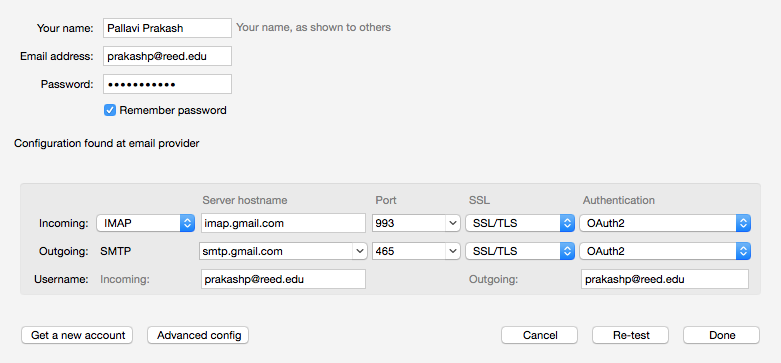
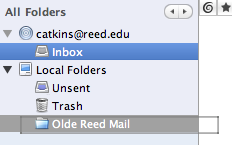
Create a new folder under Local Folders.
You will then be able to drag and drop single e-mails, entire folders, and even your entire Inbox from your Reed Gmail account, into your new folder, thus moving each message, complete with attachments, to your computer.
Note: The messages are
moved, not copied. Because they are now on your personal machine, Reed will no longer back them up for you. We recommend that you back them up on your own.
If you want to back up your Thunderbird mail, it lives in the two directories called ImapMail and Mail. On OS X, these can be found in ~/Library/Thunderbird. On Windows, you can find them by searching for the following folder: %appdata%/Thunderbird/Profiles. Then navigate to the ********.default folder (the *s represent a unique random alphanumeric combination specific to the user account). By backing up these folders in a secure location, you ensure that you can restore your saved e-mail even on a completely different computer.
Google Group Administration
If you manage a google group, please assign managerial permissions to a continuing student or community member.
people.reed.edu website
Your personal website at people.reed.edu/~username will go away. Please make sure to backup any important files through Reed’s SFTP server.
Zotero
If you signed into Zotero with your @reed.edu address, make sure you update your Zotero account to use a personal email address. Graduates will no longer have unlimited storage through Reed's license--you will either need to buy your own subscription or be restricted to Zotero's free storage plan. When moving from Zotero with Unlimited storage to the free 300 MB storage limit after leaving Reed, there is no guarantee on how files will transfer, but you will receive a sync error warning if you are over your storage limit. To make sure you maintain access to your files, download all file attachments “at sync time” in your Zotero sync preferences, then make sure the sync completes successfully. This ensures that all synced files are available on your local computer. Zotero will never delete files from a user’s computer because of online storage limitations. If you need help, please contact Reed Library's Ask a Librarian service. Learn more about Zotero storage options.
Microsoft Office
If you signed up for Microsoft Office Suite using your Reed address, your Office account will stop working a short while after your Reed Account is closed. You can purchase your own Office on their website.
OneDrive
Since you would no longer hold your microsoft account affiliated to your Reed email, you would also lose access to the corresponding OneDrive.
To backup your files to another OneDrive, use the tool on this Microsoft page, per the advise of the Microsoft support. Otherwise, you could download all of the files on the OneDrive onto your hard-drive. If you have a lot of them, the best way is to install OneDrive to your device and sync. Here's their guides on how to sync on Mac and Windows.
RStudio Data Export
To export your RStudio data from rstudio.reed.edu, follow these steps:
- Log in to rstudio.reed.edu
- Click the "Files" tab. By default, this is on the bottom right of the screen.
- Make sure you're in your top-level Home folder. Do this by clicking "Home."
- Click the checkbox to the left of "Home" to select all your files.
- Click More, then Click Export.
- Click Download.
- Congrats! You should now have a zip file in your downloads folder with all of your RStudio data.
Other Online Accounts - Overleaf, etc.
Consider all the other online accounts you may have signed up using your @reed.edu account during your time at Reed, such as Overleaf. Make sure you sign into those accounts and back up the data, or transfer them to a personal email address.
Two-step Authentication (Duo)
Two-step authentication (Duo) is not required for graduates. You will not be prompted with the Duo screen when accessing IRIS. If you were given a hardware token, you can either return it to CUS or keep it as a souvenir.
Alumni Access to Reed Services
Alums retain access to:
- IRIS and the Alumni Directory
- Login to the wireless network and ETC/Library lab computers using your Kerberos username and password
- Access to Handshake remains unchanged. If you have included a preferred email address in IRIS to replace your @reed.edu address, this will be updated automatically in Handshake after graduation.
- JSTOR access for alumni. Access to other library databases is allowed from on campus only.