Working with PDF Files
You've probably downloaded PDFs of articles or user manuals. PDF is a file format that preserves your document's layout no matter what platform it is viewed on. It can be read by anyone who has Adobe Acrobat or other PDF readers. If you are concerned about preserving your document's layout, saving it as a PDF file may be the most effective means to ensure that it looks the same no matter what machine it is viewed on.
Looking for a way to convert your PDF to a different format, such as Word? Check out Reed's subscription to SensusAccess, an accessible document converter.
- Adobe Acrobat
- Do I need Acrobat Professional?
- Creating PDFs using macOS
- Creating PDFs using Windows
- PDF Software Alternatives
- Preview
- Adobe Reader
Adobe Acrobat
Adobe Acrobat is a PDF reader/editor that allows you to read PDF files and edit them. This program comes in three versions: Reader, Standard, and Pro. Reader is the free-version of the software. It has limited editing options and it is the version most people will need. The other two versions require a paid subscription and allows the user to have better editing options.
You can view any PDF file with this program by right clicking a file and selecting Acrobat in the Open with... menu. You could also open the Acrobat program and click File>Open, then selected and open the file you wish to open.
Do I need Acrobat Professional?
You should only need Acrobat Professional if you need to:
- Edit an existing PDF file that you can't recreate in another program
- Create a PDF file directly in Acrobat
- Convert PDF files to other file types directly in Acrobat. (Alternatively, check out Reed's subscription to SensusAccess, an accessible document converter)
- Password protect your PDF file
- Restrict printing, copying or altering of a PDF file
If you do not need to do any of these functions, Adobe Acrobat Reader should be sufficient for your needs.
Creating PDFs Using macOS
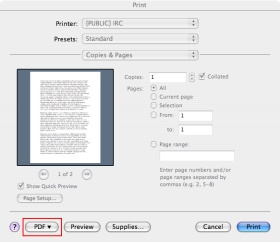
- While in a native macOS application, go to Print...
- At the bottom left of the Print... dialog, select PDF from among the file formats listed.
- Save the file in a location of your choice in PDF format.
Creating PDFs in Windows
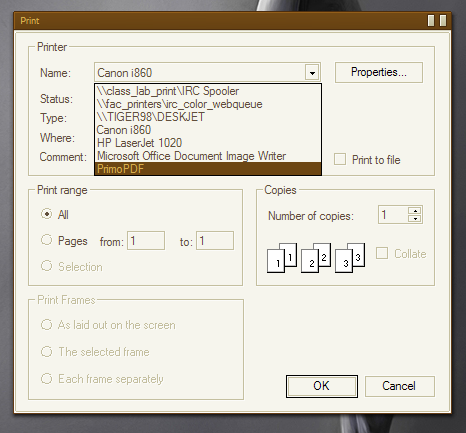
- While in the Word document you want to convert, click save as
- Open the save as type dropdown menu and select PDF
- Press save and wait a few minutes for the document to convert to a PDF.
PDF Software Alternatives
Apple's built-in Preview application is great for handling PDFs--re-arranging pages, combining multiple PDFs, markup and more.
For Windows users we recommend Foxit Reader.
Preview
We have documented below how to perform common tasks using Preview.
Re-arranging Pages
- Open the PDF file with Preview
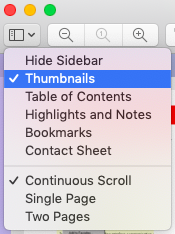
- On the upper-left corner, click on sidebar icon, and select thumbnail
- Click to select and drag the thumbnail of the page you want to move to its new location (press Command key to select multiple pages.)
Combining Multiple PDFs
- Open a PDF in Preview.
- Choose View > Thumbnails to show page thumbnails in the sidebar.
- To indicate where to insert the other document, select a page thumbnail.
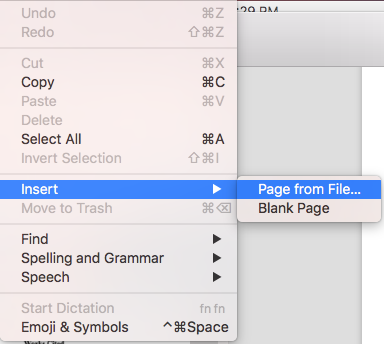
- Choose Edit > Insert > Page from File, select the PDF that you want to add, then click Open.
- To save, choose File > Export as PDF.
Making Annotations
Text Selection  : Select text to copy or delete.
Rectangular Selection  : Select a rectangular area in an image to copy or delete.
Sketch  : Sketch a shape using a single stroke. If your drawing is recognized as a standard shape, it’s replaced by that shape; to use your drawing instead, choose it from the palette that’s shown.
Shapes  : Click a shape, then drag it where you want. To resize the shape, use the blue handles. If it has green handles, use them to alter the shape.
Text  : Type your text, then drag the text box where you want.
Sign  : If signatures are listed, click one, then drag it where you want. To resize it, use the blue handles.
See more information on how to create a new signature.
Note  : Type your text. To change the note color, Control-click the note, then choose a color. To move the note to a different location, drag it.
Shape Style  : Change the thickness and type of lines used in a shape, and add a shadow.
Border Color  : Change the color of the lines used in a shape.
Fill Color  : Change the color that’s used inside a shape.
Text Style  : Change the font or the font style and color.
Annotate  : Annotate the item by sketching or drawing on it using your nearby iPhone or iPad. The Annotate tool appears blue
  when your device is connected; to disconnect your device, click the tool again.
Adobe Reader
We have documented below how to perform common tasks using Adobe Reader.
Comments in Reader
As long as a pdf doesn't have security features applied to it, you should be able to comment on the file and create lines, text, boxes and arrows. To access the comment features, click Comment on right side of your acrobat application as shown below.
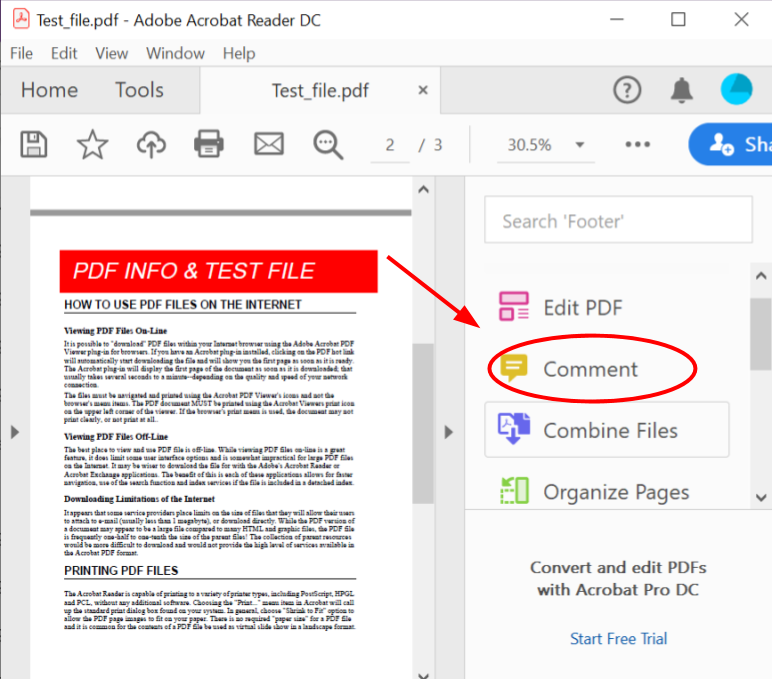
This will open a bar on the top of the application with all the comment features as shown below. We'll go through the more important comment features in following sections

Making Annotations
To comment on the pdf file click the  icon. This will turn your cursor into a white text bubble. Now click on the pdf file where you want to place the comment. A yellow text bubble will appear on the screen and you can type your comment on the left-hand side of your screen under comments. If you want to access these comments later you can either scroll through the comments section on your left-hand side or you can click the yellow text bubble left on the pdf. You can also comment to remove (
 ) or insert (
 ) text by clicking one of the two associated icons and highlighting the text.
To highlight the pdf file click the  icon. Then drag your mouse over the elements you wish to highlight (you can highlight both text and images).
To underline text on the pdf file click the  icon. Then drag your mouse over the text you wish to underline.
To strikethrough text on the pdf file click the  icon.Then drag your mouse over the text you wish to strikethrough.
Adding Elements to PDFs
In Acrobat you can also add elements to your pdf such as text, shapes, and links. These allow you to add notes, edit pdfs, and add signatures. Besides the signature, all of these features are found in the comment toolbar.
To add text, click the  icon. Then, click on the screen where you want to add text. An additional bar will appear with text options and you can type the text you want to add. If you want to make a text box, instead of clicking , click the
  icon.
icon.
To draw on the file, click the  icon. This will allow you to draw freestyle lines on your pdf. If you want to erase your lines, you can do that by clicking the
  icon. If you click and drag across the lines you had drawn, this tool will remove them.
To add shapes to the file, click the  icon. This will create a drop down menu that allows you to create lines, arrows, rectangles, ovals, text callouts, polygons, clouds, and freeform shapes. Once you select your shape, click on two points in the pdf and the shape will appear.
To add files or audio, click the  icon. Then click where you want to attach those files. A pop-up menu will walk you through to getting that file and assigning an icon to that file. It also has an option for recording audio on the program. However, it will be easier to record the audio on another application and attaching it.
To add a signature, click the  icon. Clicking this will allow you to create a digital signature. Once it is created, you can save it. After saving it, you can place it on any pdf.
Moving Pages and Images
If you are using Acrobat, you will need to use a paid version to do this on the application.
You can move pages and images on Mac Preview. More information for how to use Preview can be found on Apple's support webpage.